How to Post Every Call Summary to Discord with Zapier
November 18, 2026
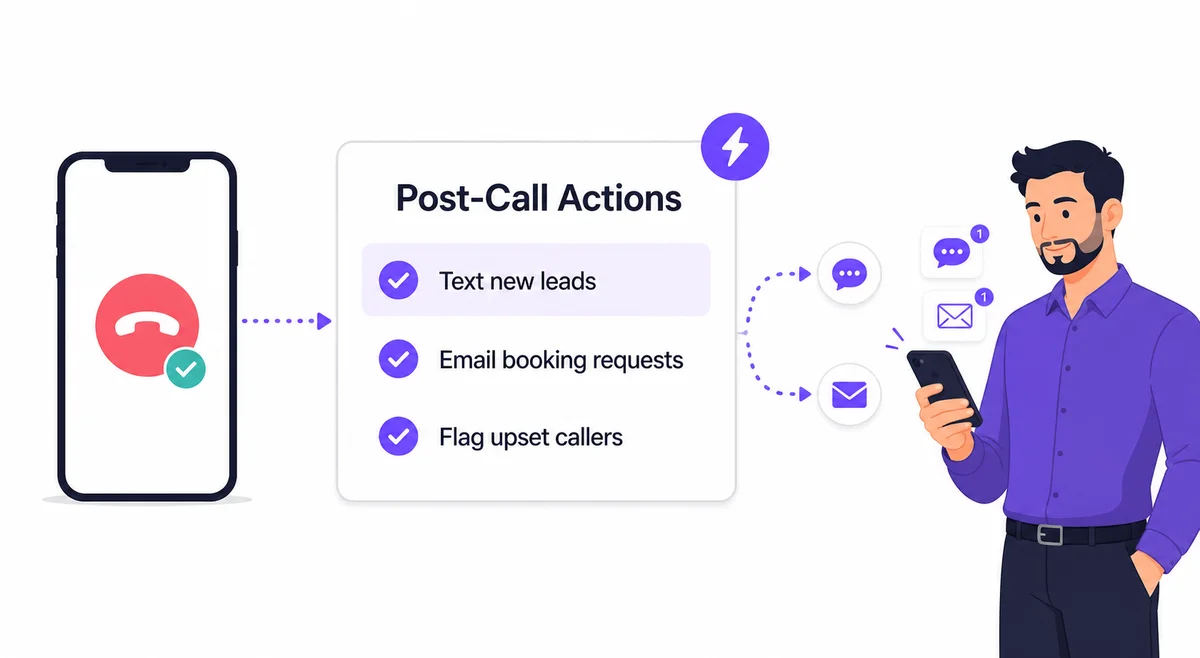
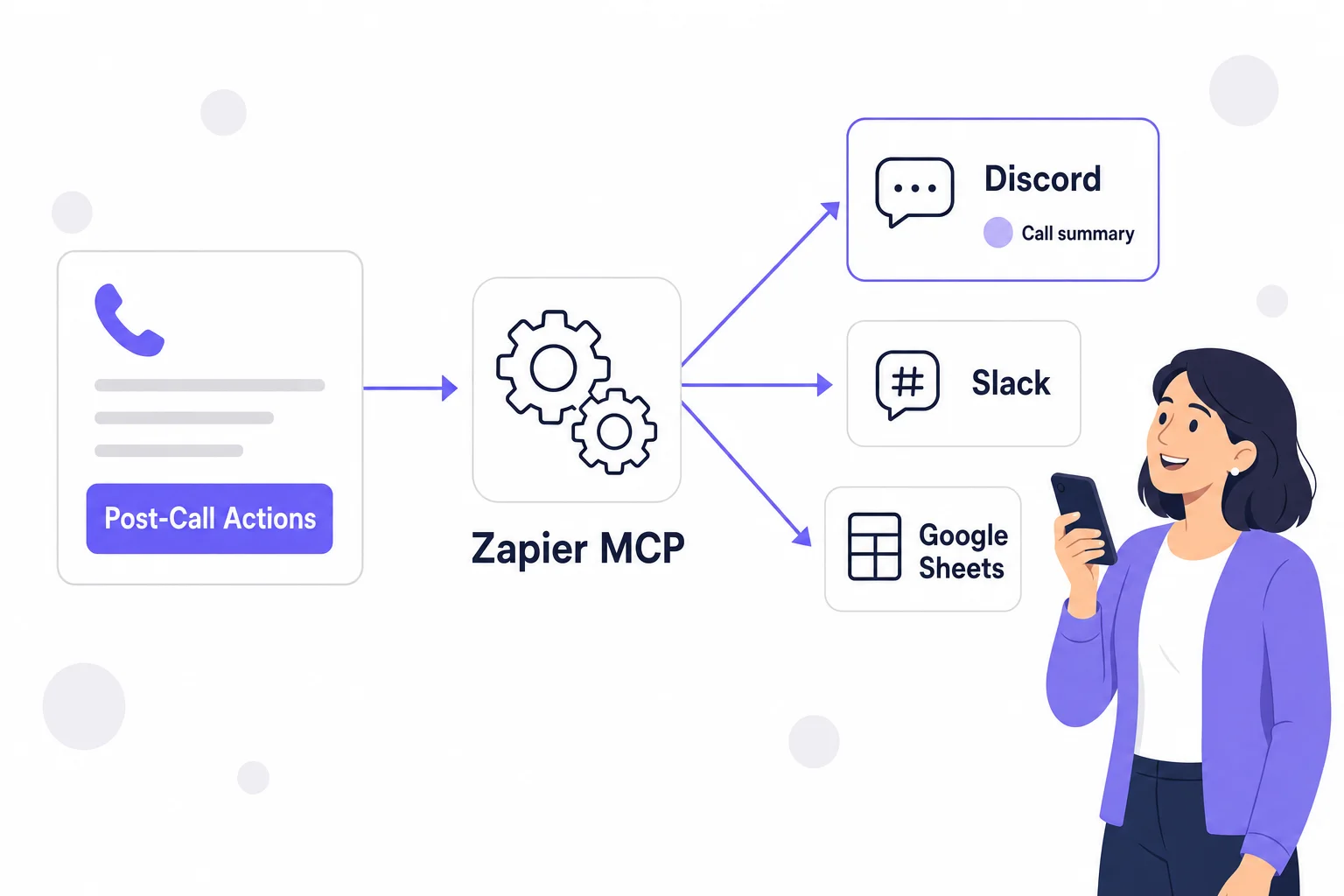
Your AI Receptionist can post a summary of every call to a channel your team already reads. After each call, the Post-Call Agent writes the summary and sends it to Discord through Zapier, so everyone sees who called and what they wanted without opening the dashboard. Setup takes about 25 minutes. When we set it up for our own test business, the first test call failed with a "Missing Access" error, and Step 5 shows the fix.
What You Need
- The Starter plan ($39 a month) or higher. Connected apps are included at no extra fee.
- A Zapier account. You don't have to build a Zap.
- A Discord server where you can change channel permissions.
The summary is posted by the Post-Call Agent, which runs once right after each call ends and follows the post-call instructions on your account. It never acts while the caller is still on the line.
Step 1: Create a Zapier MCP Server and Add Discord
- Sign in at zapier.com, click MCP servers in the left navigation, then Create. Zapier describes the product on its MCP page.
- Add Discord as an app on the new server and authorize Zapier for your Discord server. Discord then shows a message that Zapier was added to the server.
- Open the MCP server's Settings tab, leave Agentic mode on (Zapier's default) and click Generate token. Zapier shows the token only once, so copy it now.
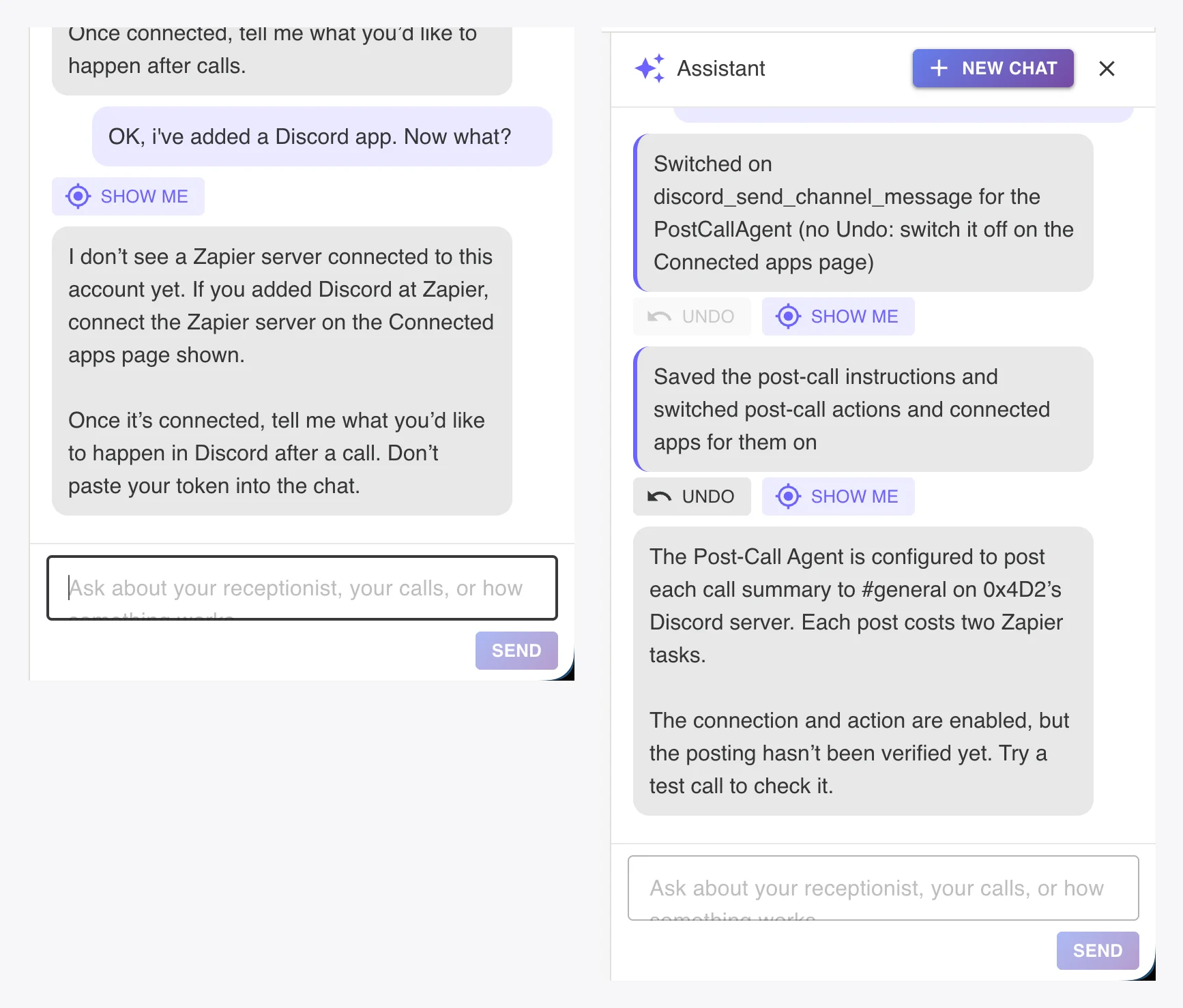
The assistant in your dashboard can tell you what comes next at any point. It checks whether a Zapier server is connected yet and points you to the Connected Apps page. Keep the token out of the chat, because the assistant refuses a token typed there.
Step 2: Connect Zapier on the Connected Apps Page
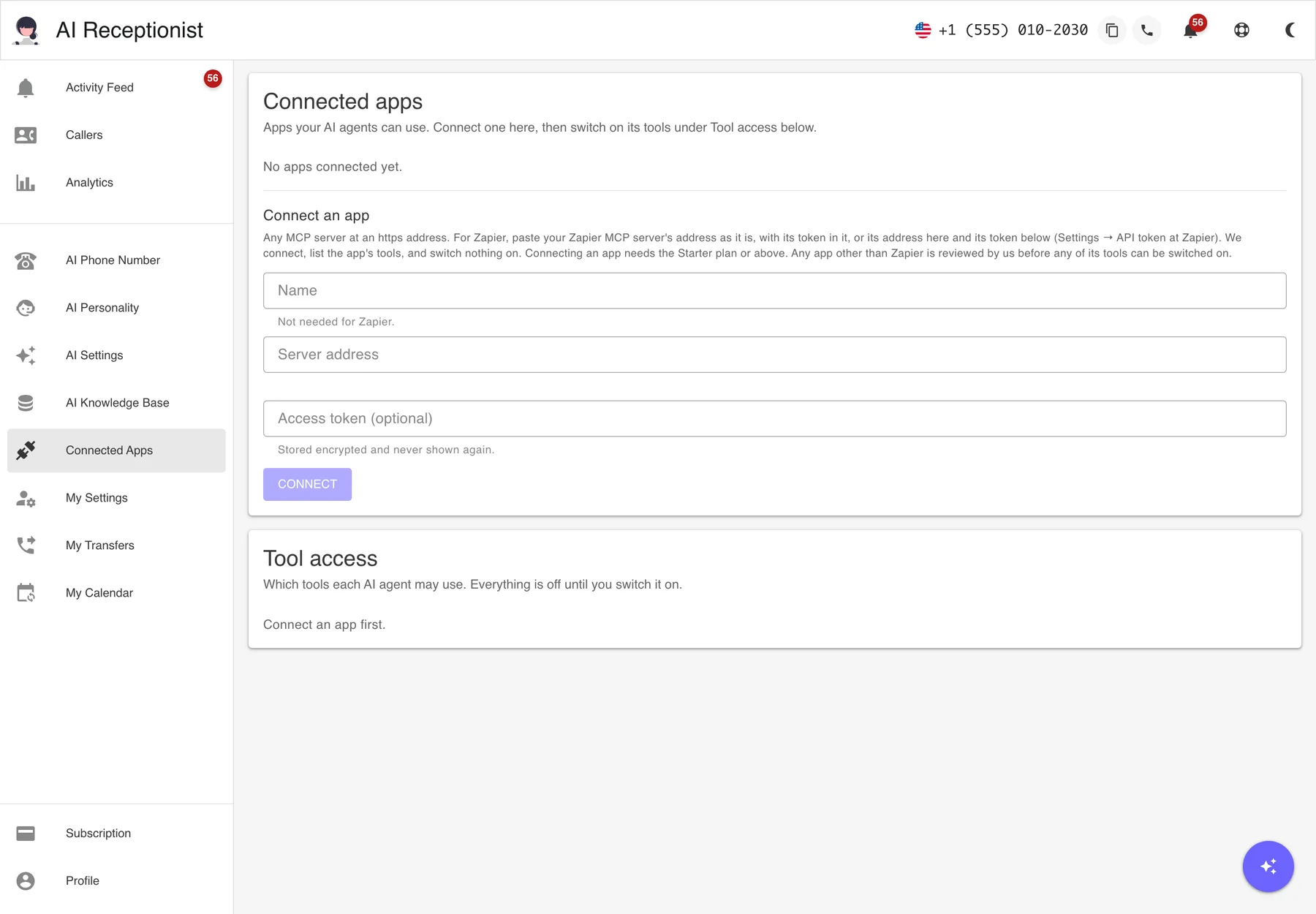
In your dashboard, open Connected Apps, enter https://mcp.zapier.com/api/v1/connect as the server address, paste the token and click Connect. Zapier shows as connected with its tools listed and all of them switched off. Before any tool can run, the page shows a short list of the risks of letting an AI agent act in your apps; read it and click I understand and accept. The Zapier setup guide has a screenshot of every screen in this step.
Step 3: Ask the Assistant to Post Each Call Summary
Tell the assistant in plain words what should happen, for example "post a summary of every call to #general on our Discord server." It switches on the one Zapier tool the job needs, discord_send_channel_message, for the Post-Call Agent only, writes and saves the post-call instructions, and turns on post-call actions with connected apps allowed. It also tells you that each post costs two Zapier tasks and asks for a test call, because nothing is verified until a post goes through.
Step 4: Make a Test Call
Call your AI Receptionist number and ask a simple question. When the call ends, the summary should appear in the channel.
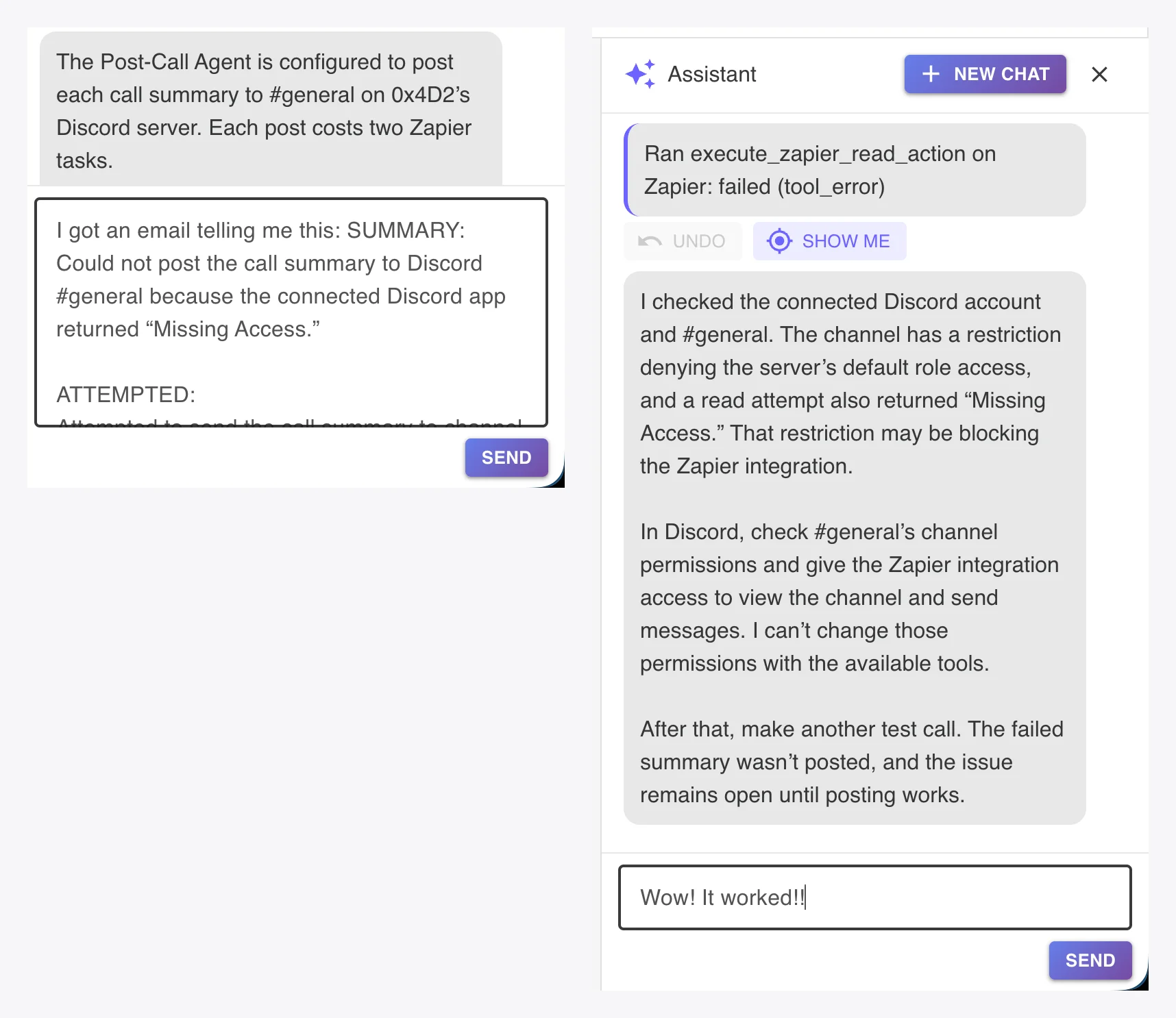
Our first test call posted nothing, and the Post-Call Agent emailed us that it could not post the call summary to #general because the connected Discord app returned "Missing Access." The agent sends that email whenever it can't carry out an instruction, and it records the failure on the call in the Activity Feed.
We pasted the email into the assistant. It ran a read action on Zapier, which failed the same way, and then checked the channel. Our #general denied access to the server's default role, so Zapier couldn't see the channel at all. The assistant can't change Discord permissions itself, so it told us which two permissions Zapier needed and kept the issue open until a post went through.
Step 5: Fix "Missing Access" in Discord
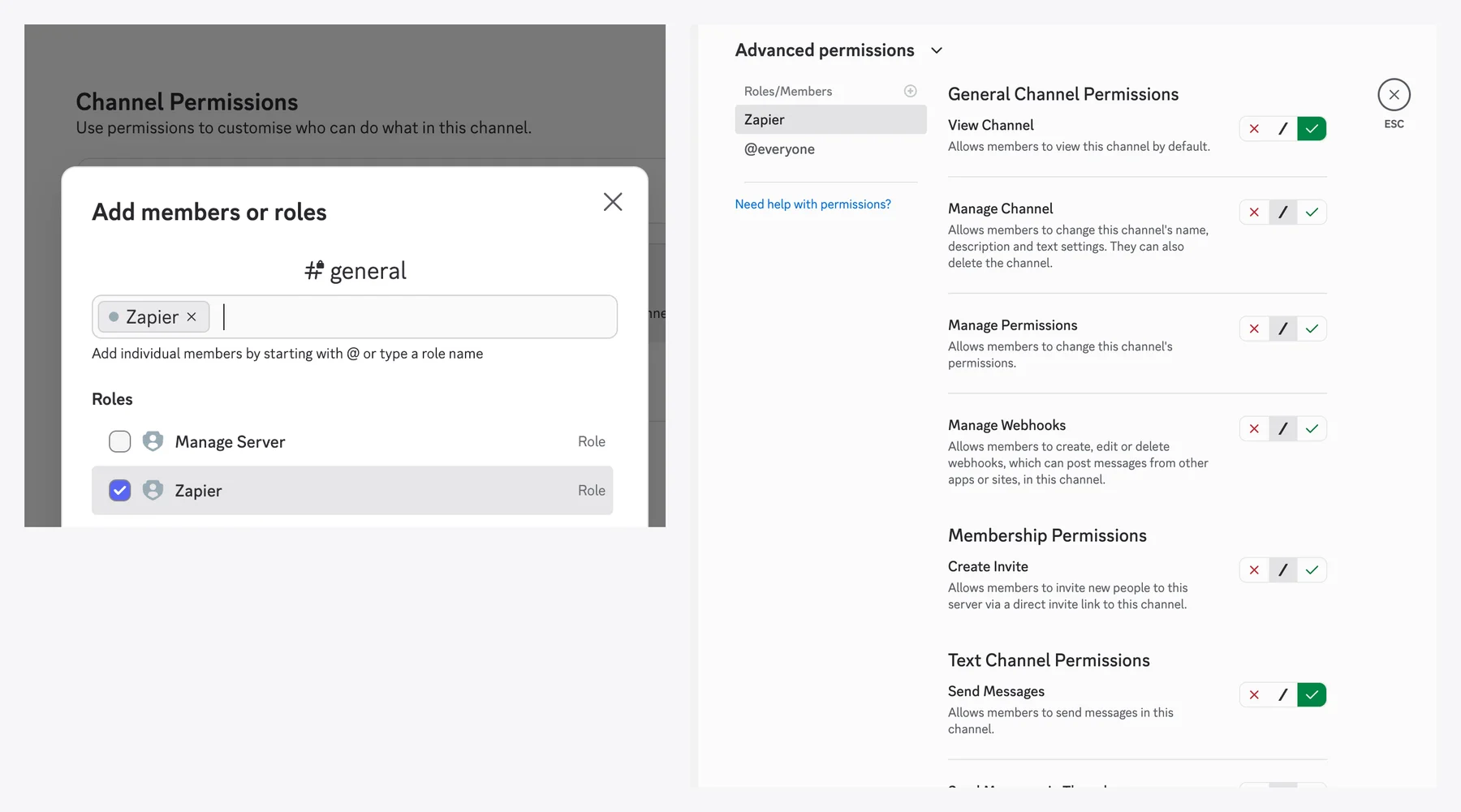
Discord's permissions FAQ explains how roles and channel permissions work together. A channel that is closed to @everyone stays hidden from Zapier until you add Zapier's role to it:
- In Discord, open the channel's settings and go to Permissions.
- Click Add members or roles and add the Zapier role.
- Under Advanced permissions, set View Channel and Send Messages to allowed for Zapier, and leave everything else at its default.
With the role added, a second test call shows whether the summary now reaches the channel.
The Result
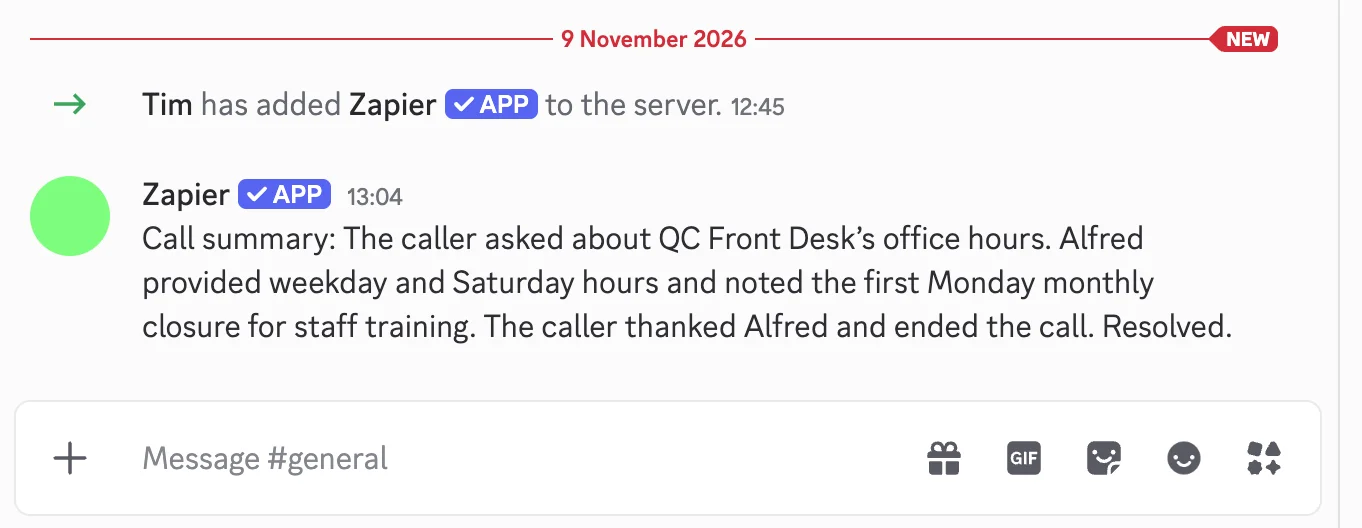
On our second test call the caller asked about office hours, and the Zapier app posted this in #general: "Call summary: The caller asked about QC Front Desk's office hours. Alfred provided weekday and Saturday hours and noted the first Monday monthly closure for staff training. The caller thanked Alfred and ended the call. Resolved." QC Front Desk is our test business, and Alfred is the name of its receptionist.
What It Costs
Connected apps are included on Starter, Solopreneur and Business at no extra fee, and each Post-Call Agent run uses support agent tokens from your plan's monthly allotment. The plan comparison shows what else each plan includes. Zapier counts two tasks on your Zapier plan for each Discord post.
Slack, Teams, Sheets and CRMs
The same Zapier server reaches Slack, Microsoft Teams, Google Sheets and CRMs like HubSpot. Add the app at Zapier, tell the assistant what should happen after a call, and it switches on the matching tools. A missing permission at the other app can stop those runs too, and the failure email and the assistant help you find it the same way. The integrations page lists what connected apps can and can't do, and the post on post-call actions covers writing the instructions themselves. Everything else that shipped with connected apps is in the November 2026 updates.
If a post-call action fails and the assistant's answer doesn't solve it, contact us and we'll look at the run with you.