November 2026 Updates: A Dashboard Assistant, Zapier and MCP Connections, and New Setup Guides
November 18, 2026
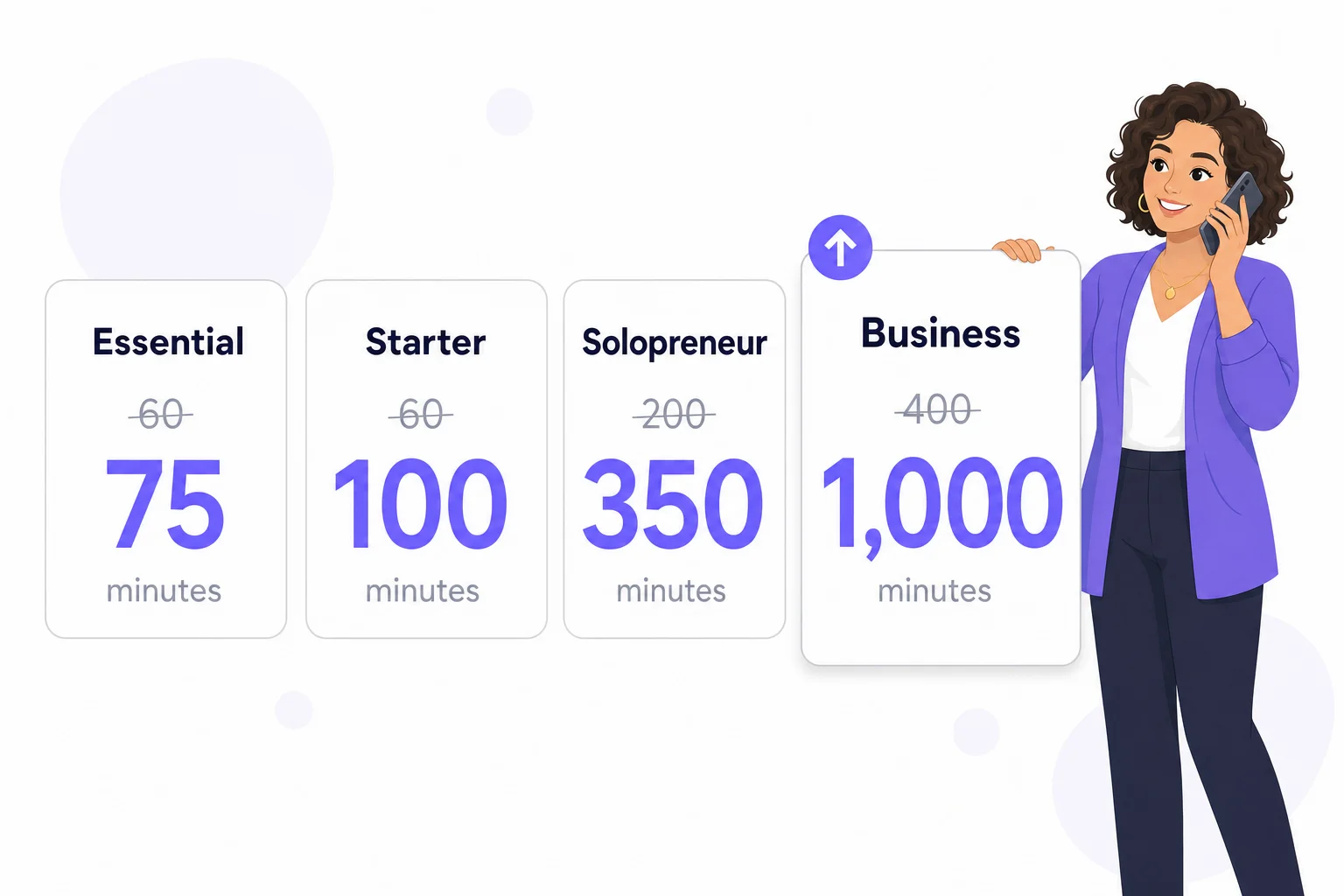
This month your dashboard got an assistant. You ask it how something works or tell it what to change, and it does the work while you watch. From the Starter plan, your receptionist can now also send the details of each call to the other apps you use, through Zapier or an MCP server. When a caller asks something your receptionist can't answer, it now tells you, and the assistant can fix it. On the website there is a new integrations section with a setup guide for each connection, and a page for Canadian businesses.
An Assistant in Your Dashboard
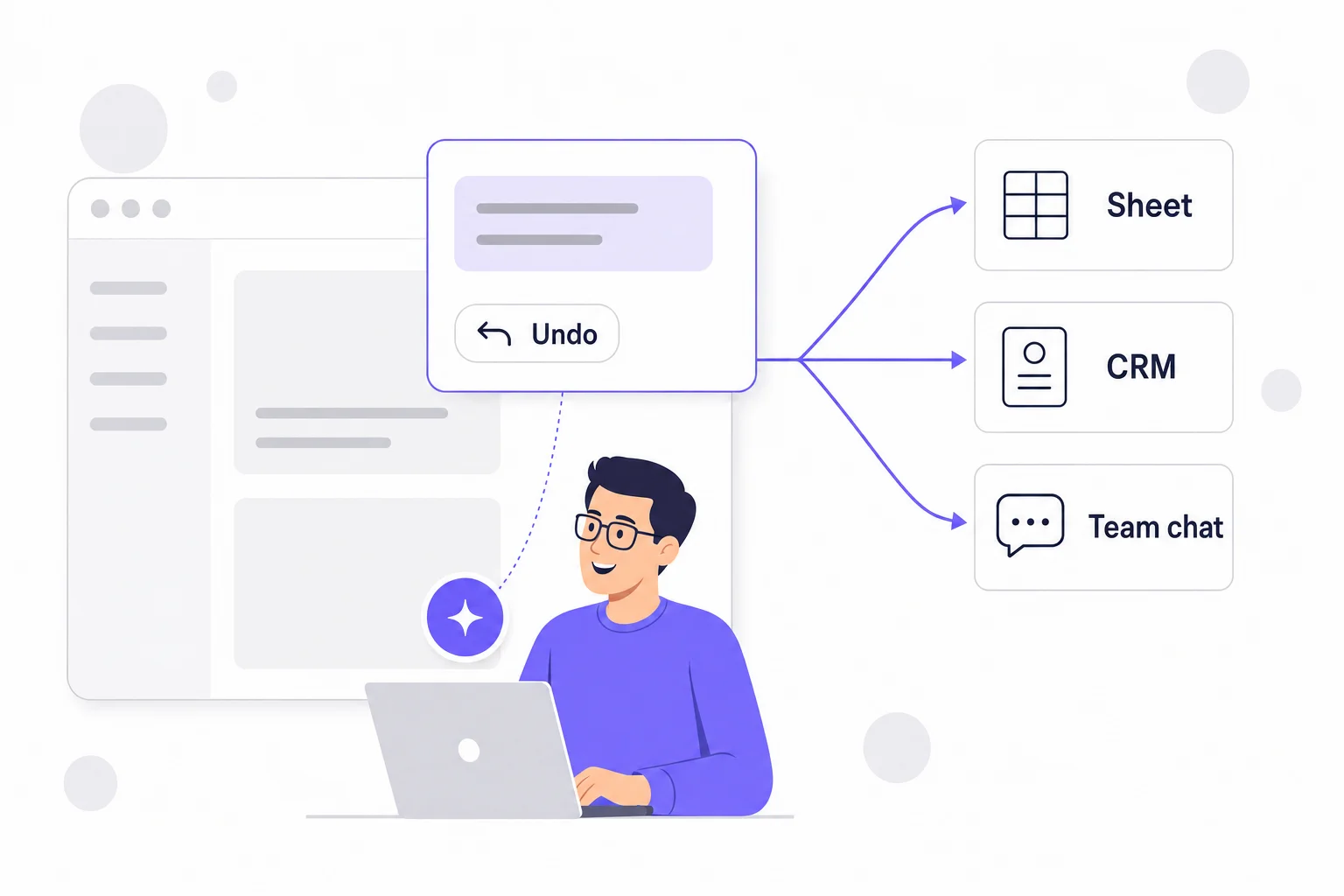
Click the round button at the bottom right of any dashboard page and ask in plain language. The dashboard assistant answers questions about your plan, your calls and your settings, and it makes changes for you: your AI Instructions, greeting, voice, knowledge base, contacts, notifications and calendar hours. Every change shows up in the chat with an Undo button, and "Show me" opens the page and highlights the setting it changed.
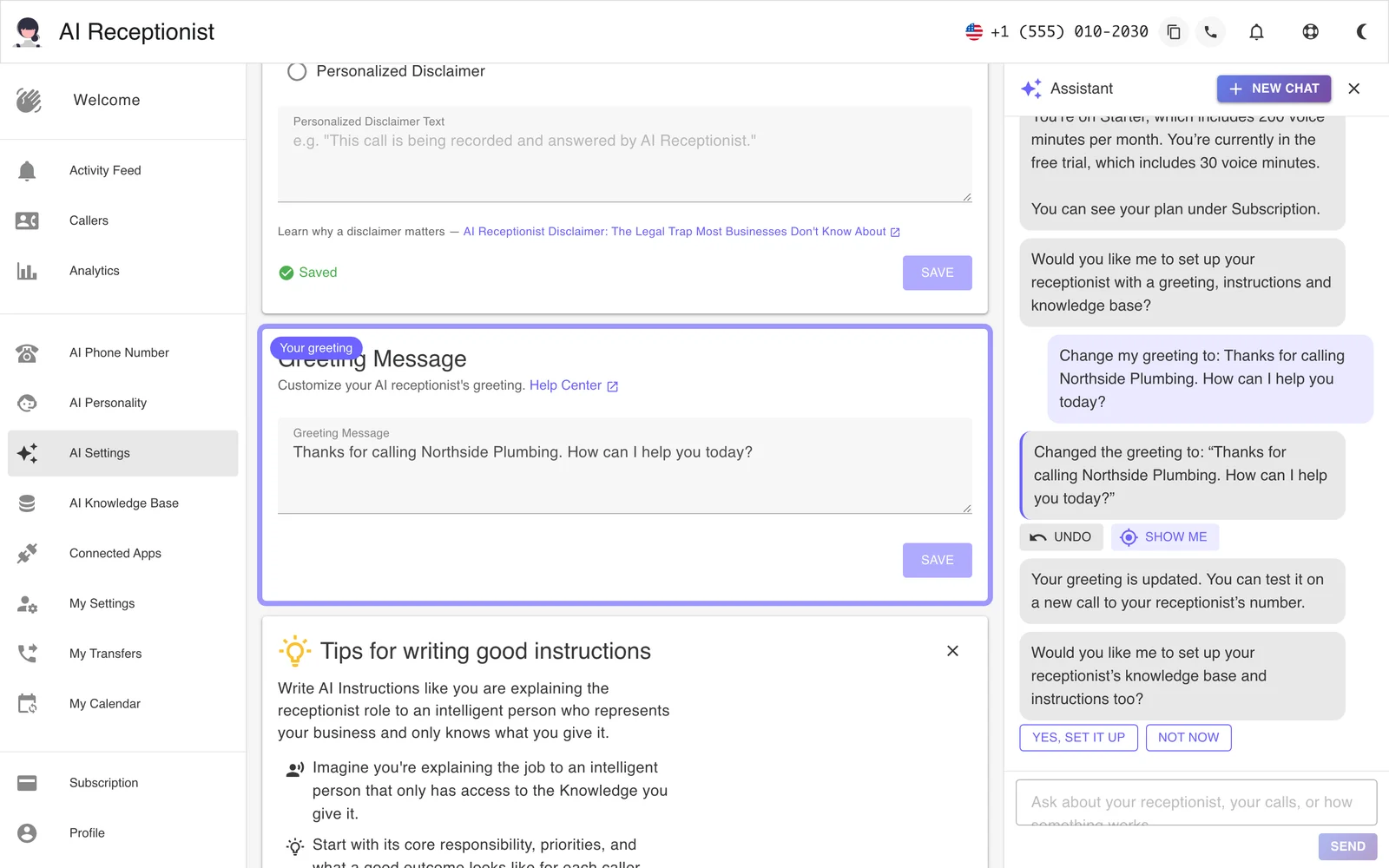
You can ask it "How many calls did I get this week?" or tell it "Add an instruction to offer the first morning slot to callers after 6 PM." The assistant is included on every plan. It uses the same monthly support agent tokens as Post-Call Actions, and your Subscription page shows how many are left.
A Tune-Up From Your Website
New accounts now start in the assistant. You give it your website, and it writes your knowledge base, your AI Instructions and your greeting while you watch, then asks a few setup questions you can answer or skip. If your account is already set up, you can give the assistant your website again at any time. It reads the site and offers to bring your receptionist up to date, one change at a time, each with Undo.
Connected Apps: Zapier and MCP Servers
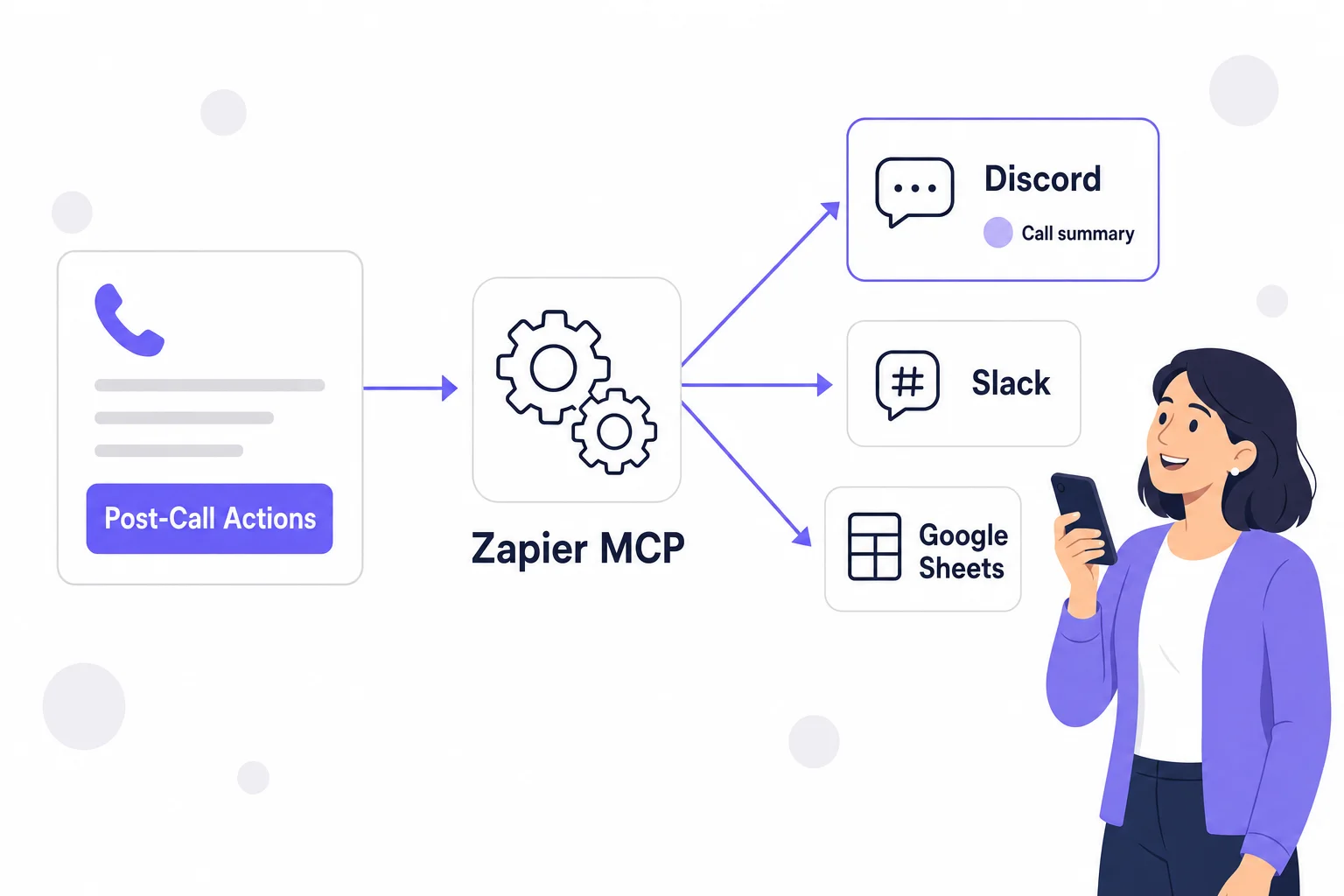
From the Starter plan, you can connect your Zapier account or any MCP server on the new Connected Apps page. After each call, the Post-Call Agent can add the caller to your CRM, add a row to a Google Sheet or post to your team's chat channel. You don't build anything at Zapier, because you tell the assistant something like "add every new caller to my Leads sheet" and it sets up the job for you.
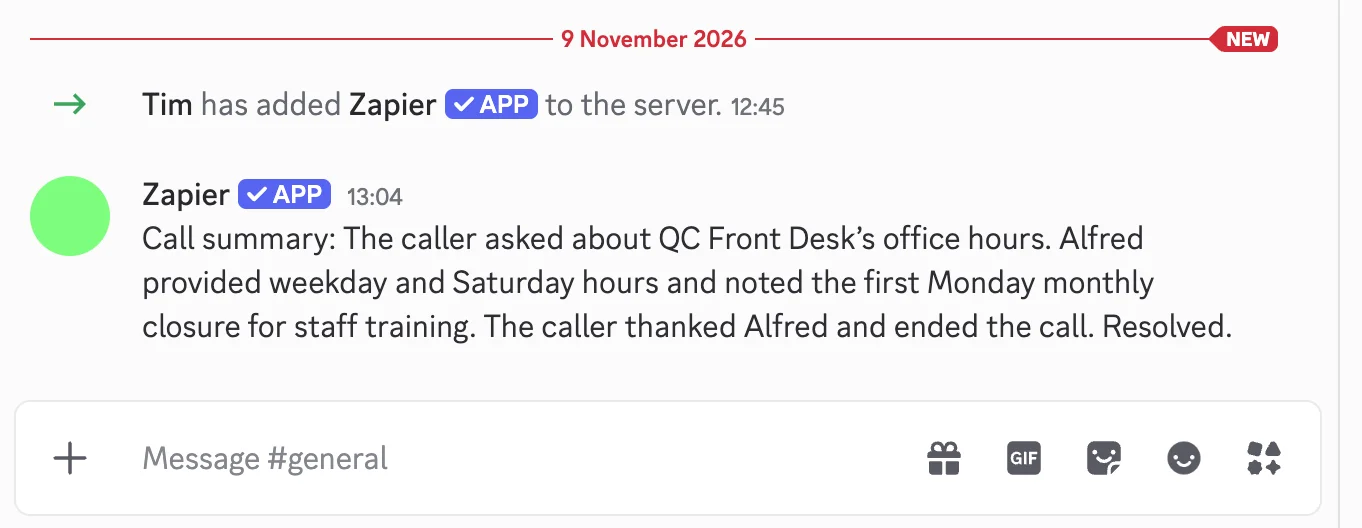
Every action starts switched off, and the agent can use only the actions you switch on. Connected apps are used after the call ends, not while the caller is on the line. The connected apps overview explains the safeguards, and we wrote up our own first setup, including the permission error we ran into, in How to Post Every Call Summary to Discord with Zapier.
A Setup Guide for Every Integration
The website has a new integrations page that lists each connection, when it runs and which plans include it. Three of them have a step-by-step guide with a screenshot of every screen:
- Google Calendar: connect with one Google sign-in, choose your calendars, set your booking rules and working hours, and make a test call. Booking works during the call, on every plan.
- Zapier: create a Zapier MCP server, paste its address and token, and let the assistant switch on the tools a job needs.
- MCP servers: connect any software that runs a Model Context Protocol server, including your own. We review each server before it is switched on.
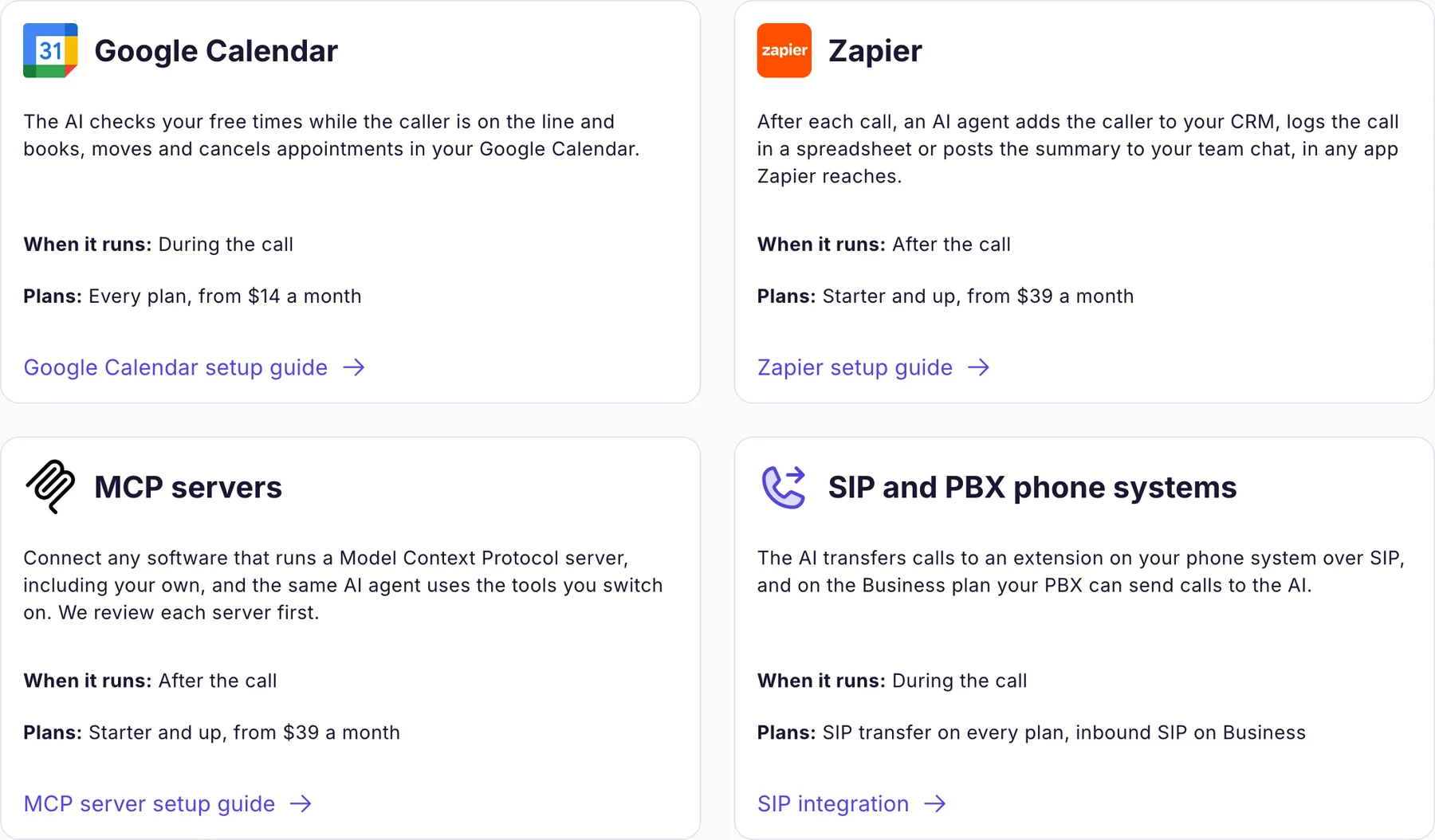
The fourth card covers phone systems, where transfers to an extension over SIP are on every plan.
Your Receptionist Tells You What It Couldn't Answer
When a caller asks something your receptionist can't answer, for example because a fact is missing from your knowledge base or two of your instructions disagree, it now records an issue. You get one email, and a banner at the top of your dashboard lists the open issues. Click "Fix" and the assistant reads the calls, makes the fix with Undo, and clears the issue. If you'd rather leave something as it is, tell the assistant and it clears the issue without changing anything.
Easier Calendar Hours
Each time slot on My Calendar now shows whether your change is saved, and a time you type is never rewritten for you. You can also set your hours by asking, in the assistant or by phone in Boss Mode: "Set my hours to Monday to Friday, 9 to 12 and 1 to 5, and close on Saturday." It sets every day in one go and reads the week back to you.
If your receptionist books into Google Calendar, it now follows the Busy and Free setting on your events. A day off entered as an all-day event is Free by default in Google, so set it to Busy to keep it blocked.
Ready-Made Disclaimer Lines
If you write your own call disclaimer, the Disclaimer card on AI Settings now offers five ready-made lines that already include everything the check looks for, with a checklist that updates as you type. Pick one, adjust the wording, and save. Our earlier post explains why the disclaimer matters.
For Canadian Businesses
A new page covers Canadian phone numbers: how to get a number by city or area code, the forwarding codes for Bell, Rogers, Telus and nine other Canadian lines with each carrier's conditions, and how the receptionist answers in English and French on the same line.
In the Press
Eight articles that quoted us in recent months, on topics from customer support to cloud costs, are now listed on our About page.
If the assistant gets something wrong, or you'd like help connecting Zapier or your CRM, reach out and we'll help you set it up. Not using AI Receptionist yet? Every plan comes with a 7-day free trial, no credit card needed, and the assistant sets up your receptionist from your website in the first few minutes. Last month's changes are in the October updates. As always, thank you for your continued support.